Spreadsheet Essentials
Case study · Cape Manufacturing · Prepare the working model
You have reviewed the proposal inputs. Before completing the comparison, you prepare a working copy of the supplied workbook and establish the link between generation and self-consumption.
Enabling outcomes · spreadsheet readiness
Purpose of this section: provide the minimum spreadsheet skills needed to complete the investment analysis. No prior Excel proficiency is assumed.
After completing this section, you should be able to:
- identify a cell using its column and row address;
- enter and edit a formula;
- reference data on another worksheet;
- distinguish and apply relative, absolute and mixed references;
- copy formulas accurately;
- apply appropriate number formats; and
- inspect a formula to identify a possible error.
Evidence: a correct first useful-generation calculation in Your Model!B4:D4 and successful readiness check.
Platform guide · keep this beside you
Microsoft Excel
- Start a formula: type
=. - Edit a cell: double-click it or use the Formula Bar.
- Copy a formula: drag the fill handle;
Ctrl+Dfills down on Windows. - Cycle relative/absolute references while editing:
F4; on Mac,F4or⌘Tdepending on keyboard settings. - Undo:
Ctrl+Z/⌘Z.
Google Sheets compatibility
- Start a formula: type
=. - Edit a cell: double-click it or use the formula bar.
- Copy a formula: drag the fill handle;
Ctrl+Dfills down andCtrl+Rfills right on Windows/ChromeOS. - Cycle relative/absolute references while editing:
F4; on many Macs useFn+F4. - Undo:
Ctrl+Z/⌘Z. Changes are saved automatically.
Same conceptual rule: B15 is relative, $B$4 is absolute, and $A8 fixes only the column. Dollar signs have the same meaning in both applications.
Excel bridge · just enough Excel to start modelling
You do not need to know Excel before continuing
You need five moves: select a cell, enter a formula, reference another sheet, copy a formula across, and format a result. You will practise each move on the actual Cape Manufacturing workbook.
1 · Cells and addresses
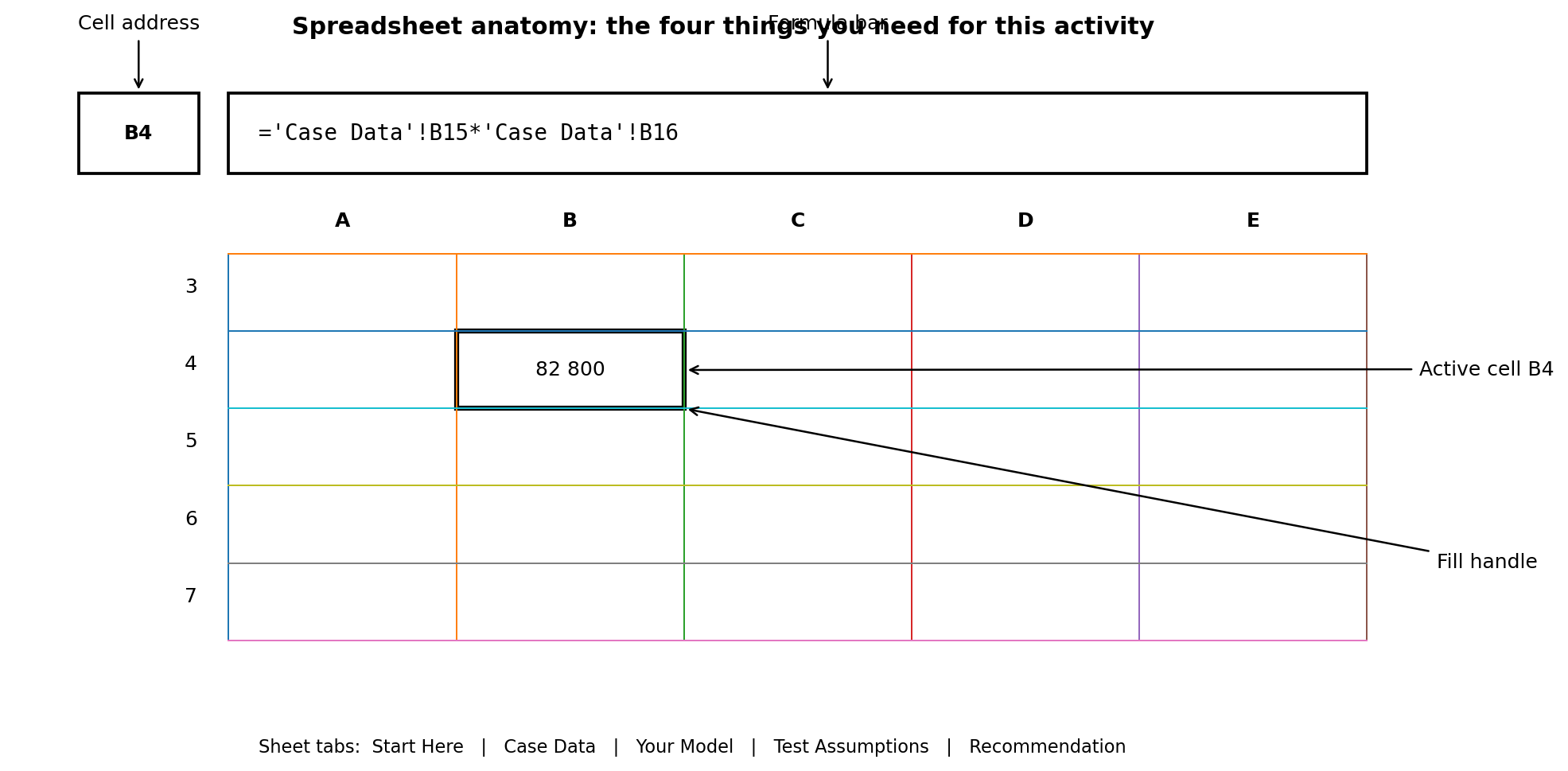
Columns use letters; rows use numbers. Their intersection is a cell. B4 means column B, row 4.
Click Case Data!B4. The Name Box identifies the active cell.
2 · Formulas begin with =
Excel calculates only when an entry begins with =.
Example: =2+3 returns 5. In this course, however, you will reference cells rather than type business inputs into formulas.
3 · Referencing another sheet
A reference such as 'Case Data'!B15 means “use the value in cell B15 on the Case Data sheet”.
The quotation marks appear because the sheet name contains a space.
4 · Relative vs absolute
B15 is relative: copied one column right, it becomes C15.
$B$4 is absolute: copied anywhere, it remains B4. Use this for the shared tariff.
Guided practice · your first live formula
Calculate System A useful generation
- Click the Your Model sheet.
- Select the yellow cell
B4. - Type exactly:
='Case Data'!B15*'Case Data'!B16
- Press
Enter. You should see 82,800. - Click
B4again. Move the pointer to the small square at the bottom-right corner of the selection (the fill handle). Both Excel and Google Sheets use this control. - Drag the fill handle across to
D4. In Google Sheets you can alternatively selectB4:D4and use Fill right /Ctrl+Rwhere supported. Excel should adapt the relative references for Systems B and C.
Check your answer
B4 = 82,800, C4 = 102,850, D4 = 114,660.
Formatting essentials
Values and presentation are different things
- Use Currency/Accounting formatting for rand amounts.
- Use Percentage formatting for rates such as 90%.
- Use Number with two decimal places for payback years.
- Do not type “R”, “%” or “years” into numeric cells; use number formats so Excel can still calculate with the values.
If you make a mistake: use Undo (Ctrl+Z on Windows; ⌘Z on Mac). A formula can always be edited in the cell or Formula Bar.
Completed: you can now enter a formula, read a cross-sheet reference, copy a relative formula and recognise an absolute reference.
Next: use those moves to complete the commercial model.
Glossary & further reading · optional
- Cell reference
- An address Excel uses to locate a value, such as B4: column B, row 4.
- Relative reference
- An Excel reference such as B15 that adjusts with the formula’s new position when copied. Copying one column right changes it to C15.
- Absolute reference
- An Excel reference such as $B$4 that keeps both its column and row fixed when the formula is copied. The dollar signs lock the reference; they do not indicate currency.
- Mixed reference
- An Excel reference with only its column or row fixed. In $A8, column A stays fixed while the row can change when copied down.
- Formula
- An Excel expression beginning with = that calculates a result using values, references, operators or functions.
- Worksheet
- One tabbed sheet within an Excel workbook, such as Case Data or Your Model.
- Cross-sheet reference
- An Excel reference to a cell on another worksheet. In ‘Case Data’!B15, the sheet name comes before ! and the cell address follows it.
- Fill handle
- The small square at the bottom-right of an Excel selection, used to copy a formula into adjacent cells. Relative parts of references adjust as the formula is filled.
Further reading
Microsoft Support — Switch between relative, absolute, and mixed references
How Excel cell references behave when formulas are copied.
Read the resource ↗Microsoft Support — Overview of formulas in Excel
Excel formulas, operators and references, including links to other worksheets.
Read the resource ↗